I started out with Loom two years ago for my first online course. It was…fine. Everyone in my web design world used and loved Loom and it was the simplest and least expensive tool I could find for a video novice.
Then I attended an online summit and saw a presentation created with Tella that had cool video shapes and smooth transitions in and out of screen shares. I wanted to make videos like that!!! I took Tella for a test drive and found it very intuitive to learn and super easy to re-create those cool video layouts. (And it was, and still is, less expensive!)
Since I made the switch, Tella has added SO many new features and improvements while still focusing on simplicity and usability. You can do lots of advanced things with your video editing, or you can keep it simple and quickly produce a high-quality video.
I recently revisited Loom to update this post, and its editing tools haven’t changed much in the past two years.
Keep reading for a comparison of the two tools and what makes Tella really stand out as the better tool for a solo business owner who creates online courses and YouTube videos. If you decide to try Tella, use my link below to get 30% off your first year!
Tella vs Loom: Quick Comparison
Loom is a tool for “video messaging for work.” Its focus is video to improve collaboration and internal documentation. Loom is a simple screen recorder with decent trimming/editing capabilities, deep integrations with corporate tools, but limited design/styling options.
Tella makes it easy to create content that people want to watch. Its focus is to help “regular people” make beautiful videos. Tella has easy-to-use tools to trim & edit, add beautiful layouts and scene transitions, video effects, and much more to create professional, engaging videos. You can also just use it to record and share quick videos.
Feature Comparison Summary
Tella
Loom
Best for
Polished content: courses, YouTube, tutorials, client videos
Team communication, internal docs, meetings, informal videos
Free option
7-day free trial of Pro
Free plan: 25 videos, 5-min limit
Price for AI editing tools
Pro: $156 annually ($109 for 1st year with discount*)
Business+AI: $240 annually
Recording
Chrome, web, Mac and Windows apps
Chrome, Mac and Windows apps, mobile app
Camera/screen layouts
Flexible multi-layouts, 5+ camera shapes & cutouts, changeable anytime in editing
Camera bubble (more shapes in Mac app only), set while recording
Record in clips
Yes: re-record or reorder sections
No: combine separate videos instead
AI editing
Silences, filler words, buffers, mistake finder, auto layouts and zooms, AI agent
Silences, filler words, AI voice corrections
Editing tools
Blur, zoom, highlight, overlays (text, media, stickers, sounds), crop, reframe camera
Blur and drawing tool (only while recording), overlays (text, arrows, boxes)
Sharing
Share link, embeds, publish directly to 6 social platforms
Instant link, embeds, publish links to 3 social platforms
Integrations
Startup tools (Slack, Notion, Linear)
Corporate tools (Jira, Confluence, Slack, Salesforce, Teams, Zoom, Google Meet)
Pricing
Let’s start with pricing, because for small business owners, the costs of all of the tools you need to run your business really add up!
The table below is a high-level comparison of the pricing plans for Tella and Loom. Note that:
If you want to do anything more than basic video trimming, you need Loom’s Business+AI Plan.
Tella is much more cost effective with an annual plan.
If you use extensive AI editing in Tella (which is completely optional), you might pay more for extra credits.
Tella
Loom
Free Plans
7-day free trial of the Pro Plan
5 minute video limit, max 25 videos, no downloads, no editing
Limited Editing (Loom Only)
Business Plan
$18/mo | $180/yr
Unlimited videos, waveform editing only
Advanced & AI Editing
Pro Plan
$26/mo | $156/yr
$18/mo | $109/yr (1st year)*
Unlimited videos, waveform + transcript editing, AI editing**, effects, 4K downloads, analyticsBusiness+AI Plan
$24/mo | $240/yr
Unlimited videos, waveform + transcript editing, AI editing, effects, 4K downloads, analytics, custom branding
Premium Plan (Tella Only)
Premium Plan
$39/mo | $228/yr
$27/mo | $160/yr (1st year)*
Pro + custom branding, custom domain, 60 FPS downloads, advanced analytics
Enterprise Plan
Advanced security, custom pricing
Advanced security, custom pricing
*Get 30% off your first year if you sign-up using my affiliate link.
**Some AI Editing features in Tella use credits. If you use up the allotted monthly credits for your plan, you would need to purchase more credits. Learn more about Tella’s AI credits here.
Video Recording
The recording tools in Loom and Tella are comparable experiences. Both have:
Chrome extensions
Desktop apps for Mac and Windows
Teleprompters to view speaker notes while recording
Mobile recording capabilities. (Loom has a mobile app but you can easily record with Tella using the browser app on your phone.)
Tella also has a web app, which is personally my favorite way to record!
The key difference in recording between the tools is that with Loom, the camera is recorded as part of your screen recording, so wherever you place your camera bubble while you record, is where it will display in the final video. Loom also has some effects that you apply WHILE you are recording, and some are available only in the Chrome extension and others only in the desktop app.
Video Editing
Loom has the basic video editing features you need for simple video screen share content. But Tella has much more advanced AI editing tools, video layouts, design options, and effects.
The table below lists the key differences in video editing features in each tool. I discuss my favorite features of each below. Note: You must have the Loom Business+AI Plan to use most of these editing features.
Tella
Loom (Business+AI)
Waveform and Transcript Editing
✅
✅
AI Mistake Finder
✅
❌
Remove Buffers
✅
❌
AI Voice Corrections
❌
✅
Edit with AI Agent
✅
❌
Flexible Layouts
✅
❌
Eye Contact
✅
❌
Zoom Effects
✅
❌
Blur parts of the screen
✅
✔️ Only while recording in Chrome extension
Highlight parts of the screen
✅
✔️ Draw with a pen while recording, add arrows & boxes
Text Overlays
✅
✔️ Limited formatting
Media Overlays
✅
❌
Screen Cropping
✅
❌
Camera Reframing
✅
❌
Audio Level Editing
✅
❌
Add Background Music
✅
❌
Tella’s Layout Editor
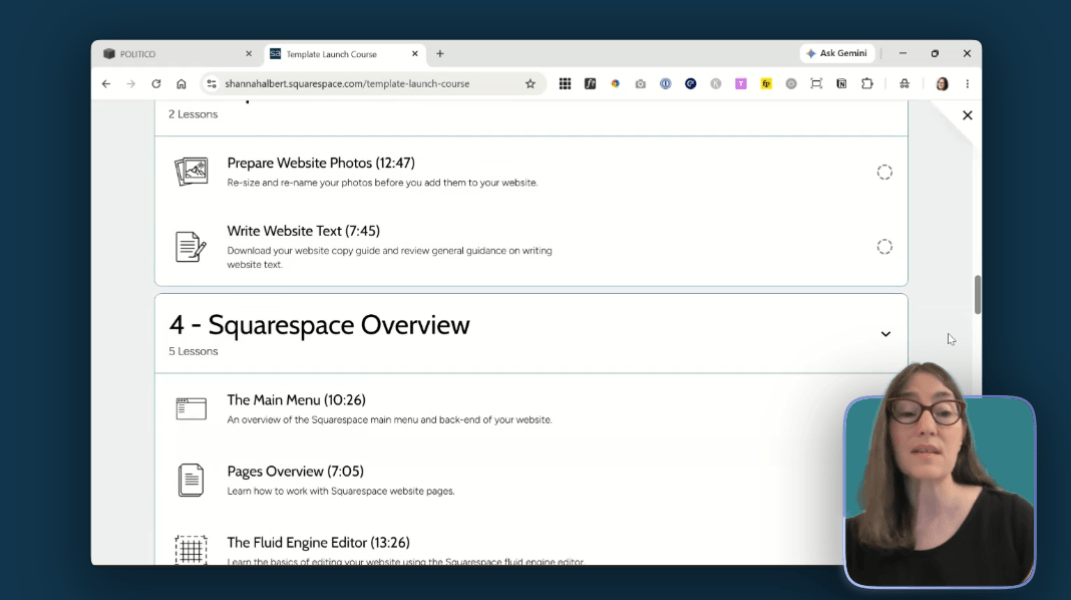
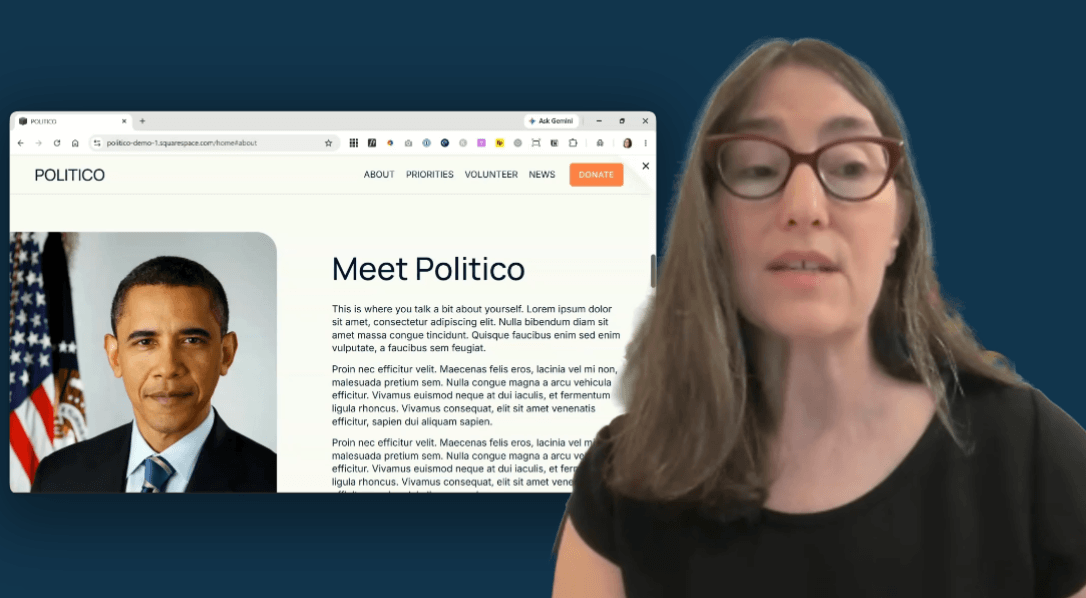
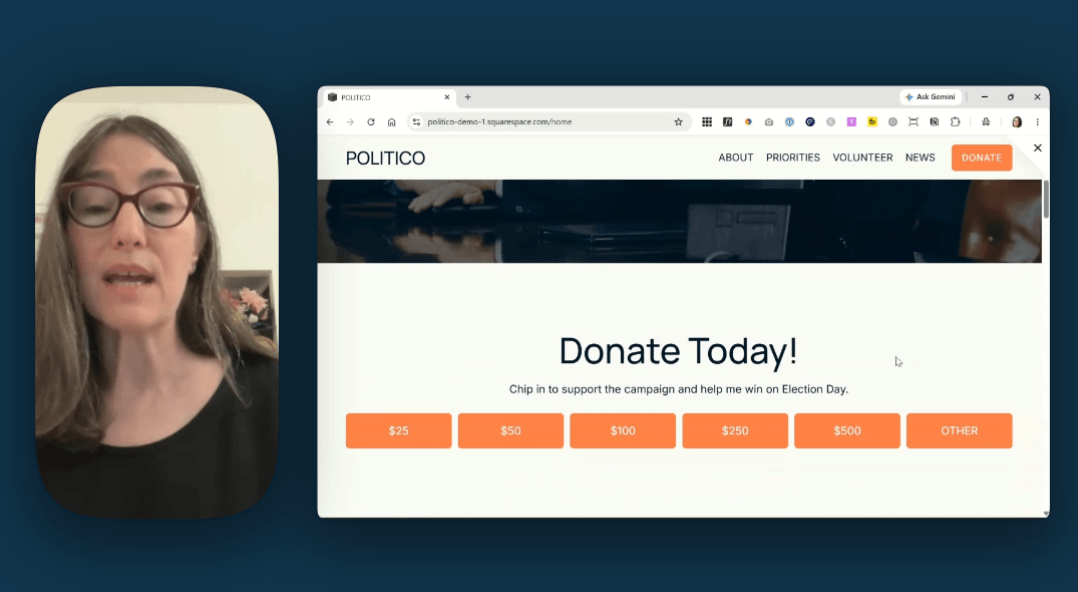
Tella is best known for its creative and customizable video layouts for your camera and screen recordings. Because Tella records the screen and camera separately, you have ultimate flexibility to apply different layouts to different sections of your video. Tella will then transition smoothly from one layout to the other. (You can even customize how quickly you want that transition to happen.) You have multiple camera shapes (and cutouts!) to choose from, and you can change them throughout your video.
In Loom, unless you are recording in the new macOS app, your only option is the camera bubble. (The new Mac app does have new shape options!) You decide on your camera settings (shape, adding blurs, backgrounds, or frames) before you record and move the camera around as needed while you are recording.
Here are some examples of layouts you can create with Tella:

AI Editing Features
Both Tella and Loom (Business+AI plan) have the standard AI editing features most people use in video editing today (transcript editing, remove silences, remove filler words, remove background noise) but Tella takes AI editing to a whole other level.
Tella not only has silence removal, but you can decide how much silence to remove to make your video more natural, fast, or faster.
In Tella you can use AI to auto apply video layouts or zooms to your video or identify mistakes (e.g. retakes) to help you quickly trim them from your video.
Tella has MCPs to edit your video from Claude or ChatGPT, and…
Tella just launched Tella Agent that allows you to edit your videos using prompts, right in the editing dashboard. You can, for example, upload a video you like and tell the Agent to add a similar effect to your video. (I have not used it myself YET, but I have seen it in action and it’s mind-blowing.) You can also use the agent to add motion graphics and auto capture screen share video for b-roll. Learn more about Tella Agent here.
Loom has a feature called “Record for Agents” but instead of using AI to edit your videos, this tool uses video to create instructions for AI to execute.
Tella has implemented a credit system for some of their AI features, so if you do a lot of AI editing (especially with the Tella Agent), you might have to purchase more credits if you go above your monthly allocation. You can connect Tella to Claude or ChatGPT which uses your Claude or ChatGPT plan and fewer AI credits in Tella.
One feature that Loom recently added that Tella does NOT have (yet) is AI voice corrections (text-to-speech). Loom will replace words in your video with new words using your voice. You can use this feature to fix mistakes (I say the wrong word at least once in every video I record) or add something you forgot to say! Very much hoping Tella adds this soon!
I do also like that Loom displays the silences in the transcript which is helpful if you prefer to remove silences manually. Tella does display silences in the transcript.
Tella’s Video Clips
Tella allows you to record your video in clips. For example, you could record an intro in one clip, then a demo clip, then a closing clip. You can do this directly in the web app so all of your clips are together in one video from the start.
Each of these clips is like a mini video within your master video. You can easily delete clips, re-record just one clip, or move clips around! You can even copy a clip from one video to another video.
You can even split clips in Tella! If you forgot to say something, you can split the clip, record a new clip with what you forgot to say, and insert the new clip between them!
In Loom, you can’t record multiple clips in the same video, but you can combine separate videos into one video. This means you have the extra step of consolidating clips and then deleting the original videos once you combine them together. You can also split videos in Loom.
More Tella Editing Favorites
Eye Contact: Tella has an eye contact feature that adjusts your eyes in the video so they are looking directly at the camera. This is super helpful to hide that you are reading from a teleprompter!
Zooms & Highlights: The tools Tella has for highlighting parts of your screen are much more professional and modern than Loom’s tools. Tella allows you to zoom in or add highlights to call out something specific you want your audience to focus on. Loom’s tools (arrows, boxes, draw with a pen) are much more basic with limited formatting options.
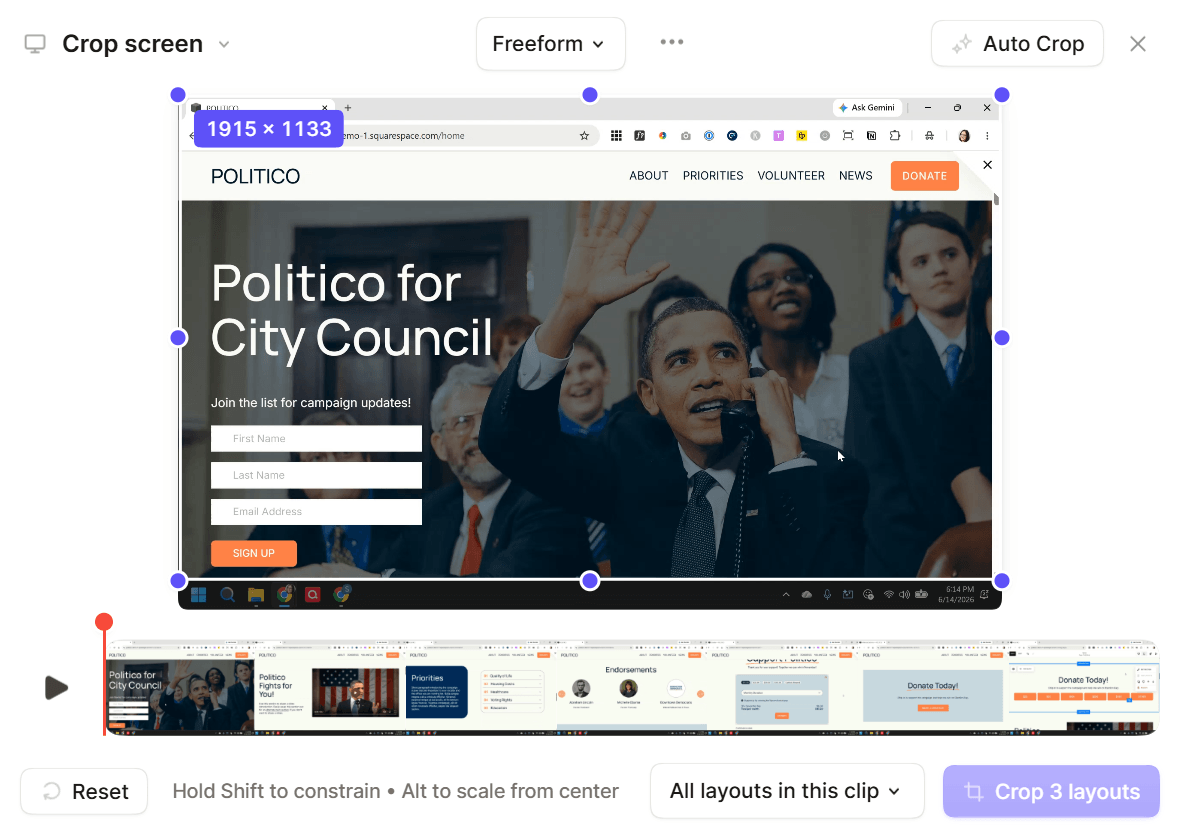
Screen Crop: Another extremely helpful feature in Tella (not available in Loom) is the ability to crop your screen share during the editing process. I have a PC, and I can’t tell you how many times I had to re-record videos in Loom because I forgot to hide my taskbar. In Tella, if you forget to hide the taskbar (or don’t want to bother) you can just crop out the bottom of the video! The same goes for cropping out the browser tabs if you forget to go full screen recording a demo and want a clean look. (Tella will even auto crop your video for you!)
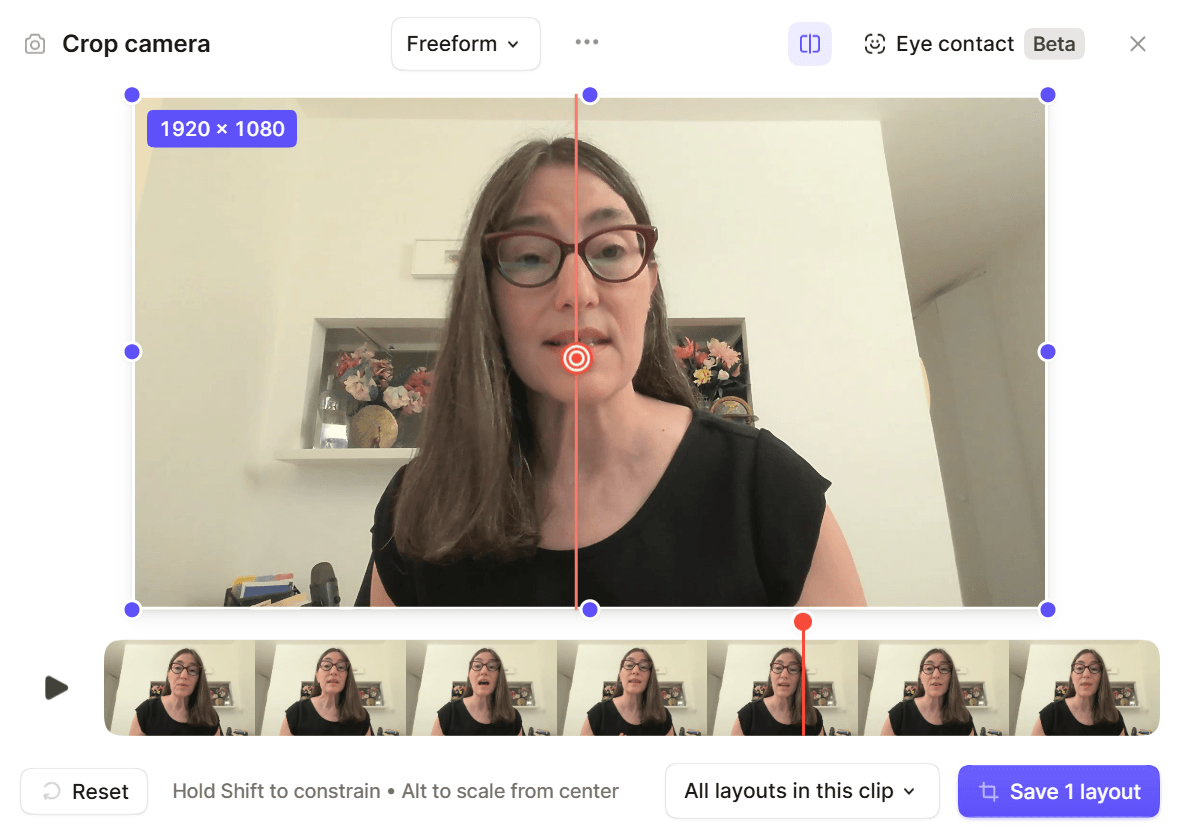
Camera Frame Adjustment: A small but cool feature I find very helpful in Tella. If you appear off-center in your camera frame (which for some reason ALWAYS happens to me!), you can very easily adjust the video to put yourself in the middle of the frame. Very cool. (Not available in Loom!)
Here is my latest Tella Tutorial video if you want to see Tella in action.
Video Sharing & Embedding
Tella and Loom have comparable features for video sharing and embedding. Here are a few differences:
Link sharing: When you finish recording a video in Loom, the link to that video is copied to your clipboard so you can “instantly” share it. In Tella, you have one more click on the “Share Button” to grab that link. (This is the only reason I can think of that people say Loom is better for quick video sharing.)
Transcript Languages: Tella currently supports 106 transcript languages and Loom supports 50+ languages. Tella can translate your transcript into multiple languages which call all be selected by the viewer on the Tella view screen.
Transcript Viewing: In Tella, you can decide whether or not you want your viewers to see the transcript while they view your video. In Loom, viewers can only see the full transcript if they sign up for a Loom account (which is a little strange.)
Sharing to Social Media: Tella will publish your videos directly to YouTube, LinkedIn, X, TikTok, Instagram, or Facebook directly from Tella. Loom allows you to share your video links directly to LinkedIn, X or Facebook.
Embedding: Tella makes it much easier to adjust the settings on your embedded videos with a few toggles before you grab the code. Loom requires you to manually adjust the code to change the settings (and its confusing!)
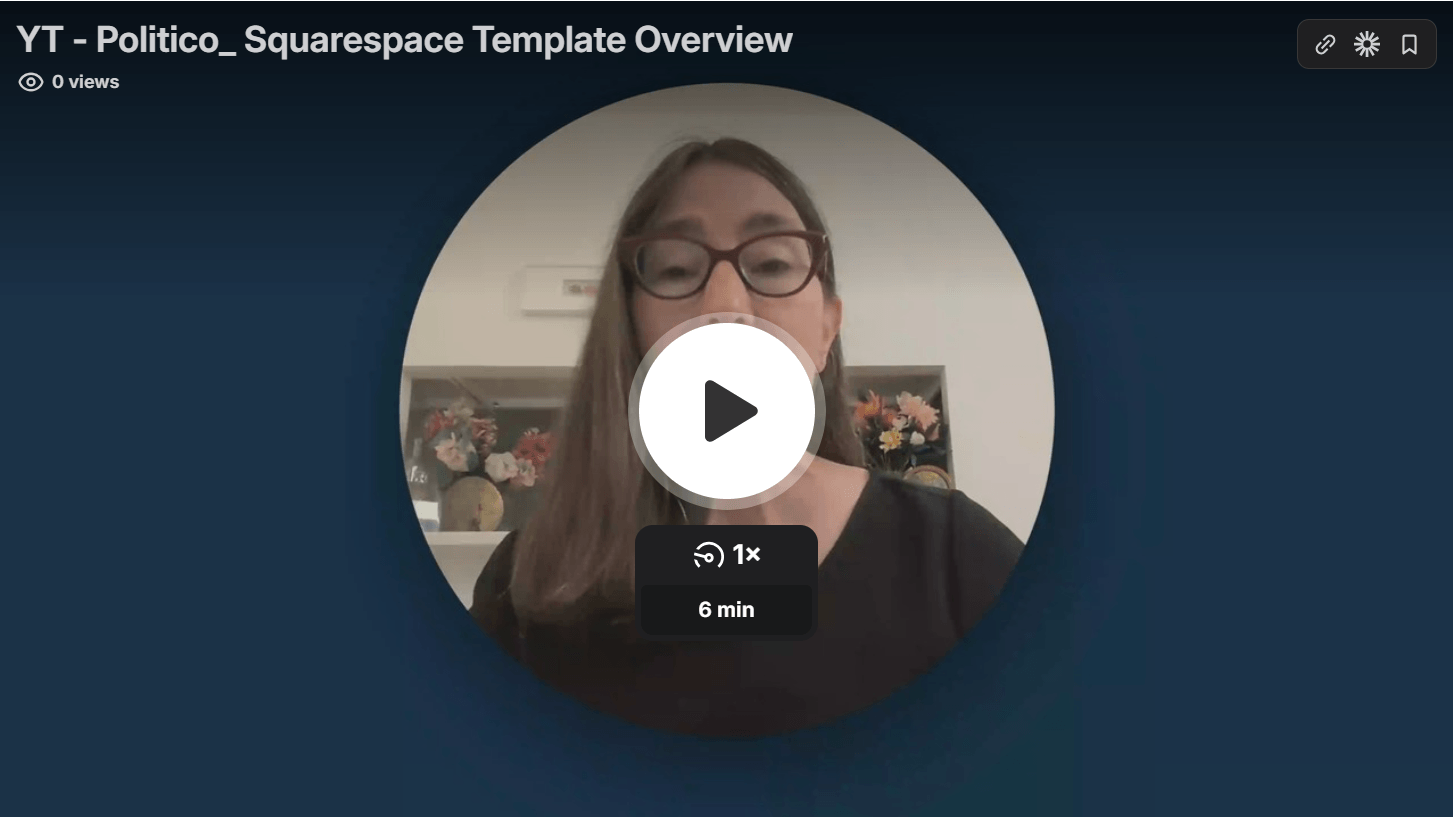
What an embedded Loom video looks like if you don’t manually manipulate the embed code.
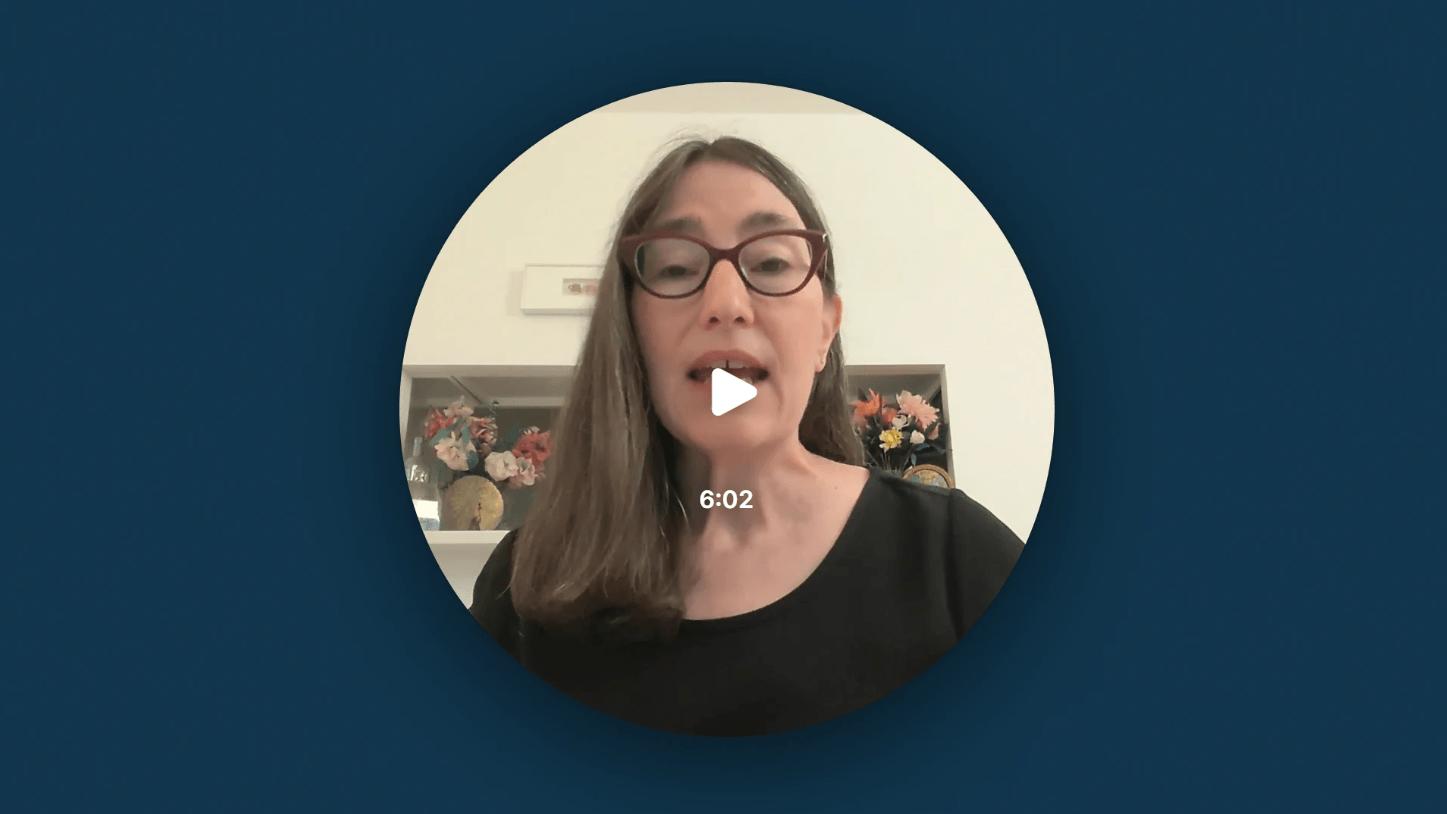
What a Tella embedded video looks like with a few clicks to remove the busyness.
Integrations
Loom’s integrations support larger company tools like Jira, Confluence, Slack, Notion, Salesforce, Calendly, Zoom, and Microsoft Teams. Loom has recently added the ability to store meeting recordings from other tools and create auto meetings notes & recaps.
Tella’s integrations are geared more towards tools used by smaller start-ups including Linear, Notion, and Slack.
Easy Migration from Loom to Tella
Tella has migration and transfer tools that make it easy to move your videos from Loom to Tella and even keep them organized in the same folders (which become playlists in Tella)! When you downgrade your Loom account, your videos stay put and the links continue to work, so nothing breaks when you make the transition. Learn more about migrating your videos from Loom to Tella.
Net-Net
I have been using Tella for two years and they have been rolling out new features and improvements non-stop. Tella listens to their users with an active support community that includes a feature request board that they use to prioritize new features. As an early Tella user, the founder reached out to me directly to get my input on how it was going with the tool!
Loom is now part of a larger corporate umbrella (Atlassian) meeting larger company needs and has not been investing in video editing. Tella is focused on the needs of content creators and smaller start-ups as they continue to innovate their platform.
If I haven’t convinced you yet, take Tella for a spin for 7 days for FREE OR watch my full Tella Tutorial first. I am pretty sure you will love it! (Use the button below for 30% off if you sign up)*
Is there a Tella Discount Code?
Tella does not have discount codes but you can use the button below to get 30% off your first year! Tella also offers discounts to non-profits and students and teachers. See the nonprofit program and education discounts for details.